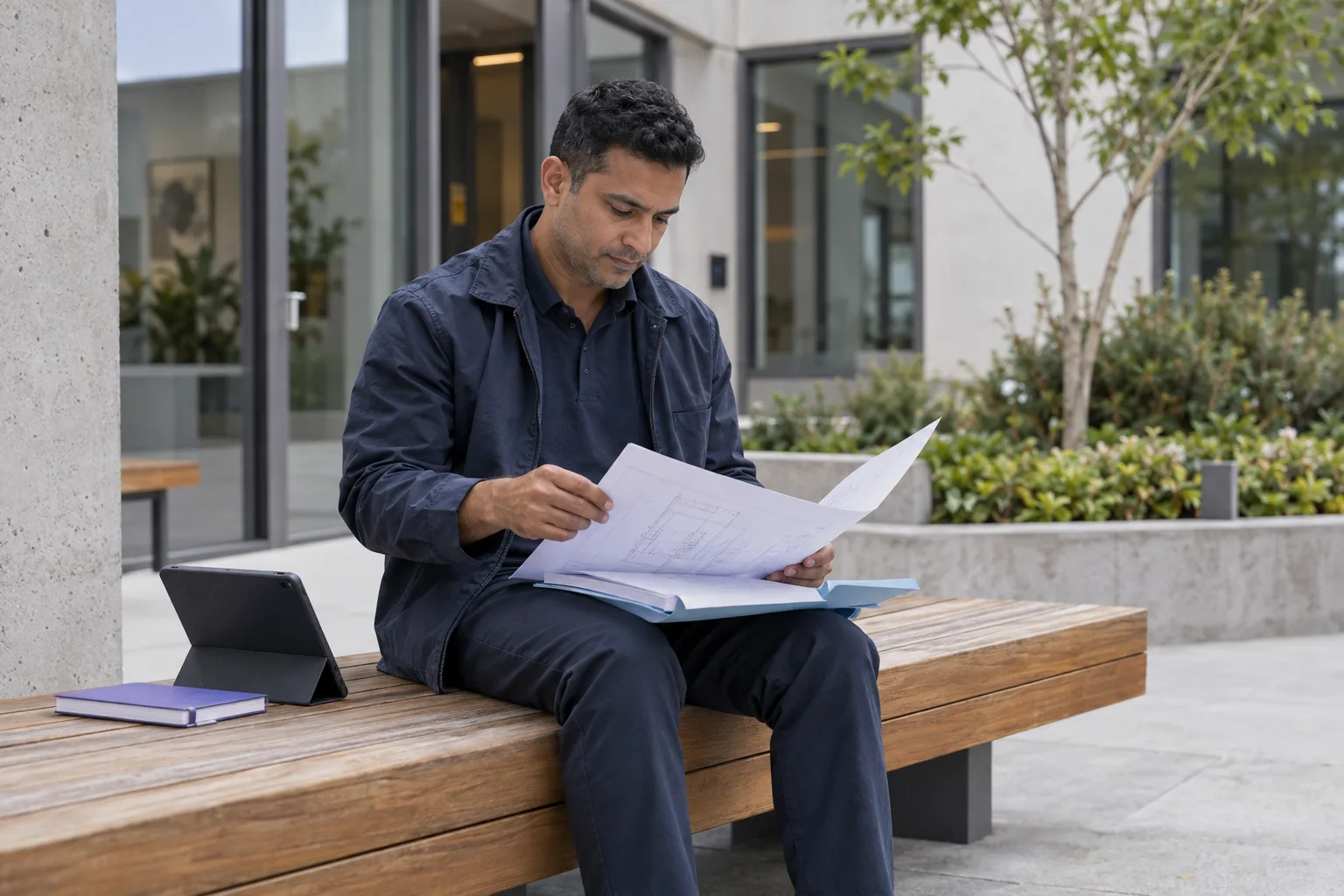
Allow downloads when a reviewer needs a local copy to do the job you've agreed. Reading drawings on a site visit, running numbers in a workbook or using a file with an accessibility tool are all good reasons. Decide which files the job needs, who gets them and how those people will hear about changes.
The request usually arrives as a quick email from a consultant: "Can I download the drawings? I'll be on site with no signal." It's a fair ask, and it's worth a minute's thought before you click yes.
If the review works comfortably in the browser, keep it there. People then have one place to find the current document. Once someone saves an ordinary copy, changing access to the original won't recall it, and replacing the original won't update it.
So the question to ask is simple: what does this person need to do with this document?
Start with the review task
A download setting changes the work people can do. Ask the reviewer what they need before you switch it on for a whole collection.
| Review task | Good starting point | Check before sharing |
|---|---|---|
| Read a reference document and send questions | Browser review | Does the format display well on their device? |
| Use drawings where the signal is patchy | Download the chosen drawing issue | Are the issue date and next check clear? |
| Run scenarios in a workbook | An approved working copy | Does the file hold more than the agreed review? |
| Use specialist or accessibility software | Test the file and app with the reviewer | Do they need a local file, an accessible version or both? |
Check how your own service actually behaves. Microsoft's download blocking, for example, keeps supported files in the browser and stops them opening in desktop or mobile apps. What's available, and for which formats, depends on the account and its settings, and those limits can get in the way of the task. Microsoft explains how blocking downloads works.
Try a sample file with the recipient first. A preview that works on the administrator's computer tells you nothing about whether the recipient can do the work.
Give the reviewer a pack they can use
Say a small company is planning a building upgrade. Its project coordinator works with an outside advisor, who reads reference material online, and a consultant, who needs drawings on a site visit.
The coordinator prepares two selections:
- Reference material: the project brief and approved background PDFs, for browser review.
- Site visit pack: the drawing issue for the visit and the visit notes, with downloads turned on for the consultant.
The internal budget and negotiation notes stay out of both. If the consultant later needs to analyze costs, the coordinator can prepare a separate workbook with the agreed material and judge that request on its own.
That way, one practical exception doesn't become an open door to the whole collection. Write down the selected files and their issue or version. "Download the project folder" is too vague to be a record.
Before you release a workbook, look at what travels with it. Hidden sheets, rows, comments and other information can stay in the file. Microsoft recommends running Document Inspector on a copy and explains what it can't catch. Removing hidden material can also change calculations, so check the result before you send it. Microsoft's guidance on inspecting documents.
Send a short handoff note
A copy that leaves the room needs enough context to stay useful on its own. The free sheet below helps you make the decision and gives the recipient a short note to keep with the files.
For the site visit, the note might read:
Site visit pack, issue 3. These two approved drawings and the visit notes are for the consultant's October site review. Check the current-source link before the visit and before writing the report. Send questions to the project coordinator. If a newer issue appears, use it for later work and say which issue any finished report used. Store and keep local copies as agreed.
Swap the general wording for real filenames, dates, named recipients and a current-source link they can open. Where you can, use an issue number that appears in the files themselves. Weeks later, someone may open a file from their downloads folder with no email beside it.
The note also needs a contact who can answer questions. A link to the current document only helps if someone is still keeping it current.
What can view-only access do?
View-only settings can remove the usual download options and make it clear how you expect people to work. They can't stop someone copying what's on the screen. Google says plainly that limits on downloading, printing and copying can't prevent people from sharing content in other ways. Google Drive's sharing guidance.
So choose the files and the recipients carefully even when downloads are off. Anyone who can see a page can photograph it or take a screenshot. If someone shouldn't have a piece of information, leave it out of their selection.
For files that were downloaded, don't assume that closing access erases saved copies, clears them from backups or stops forwarding. Any agreement about those copies needs its own follow-up. There's no single retention period for every review: follow your organization's obligations and whatever was agreed for this work.
Plan for the next version
Before you issue a pack, pick the next moment the recipient should check it. That might be before a site visit, before a report goes out or when the document's owner confirms a revised issue.
When a file changes, tell the reviewers it affects what changed, which issue is current and whether finished work needs another look. A corrected drawing may call for a different response than an updated phone number. Leave that judgment with the person responsible for the document.
If several saved copies are already out there, keep a small issue record: recipient, files supplied, issue, date and next check. It tells the owner who to contact. It doesn't prove every saved copy has been replaced.
To keep the shared source current, read how document updates work across rooms.
Try the decision in Aurora
In Aurora, your source documents are stored once in a library and each room shows its audience only the files you pick. A room's download setting sets the outer limit. Access groups and individual permissions can narrow things further inside the room.
For the example above, use one library and two rooms: a reference room and a working pack room. Give each recipient the access they need. When you replace a source document, each room sharing it shows the current version when people reopen or refresh it, and earlier versions stay in the library's history. Copies already saved outside Aurora don't change.
Start with two test PDFs. Invite a test recipient you control, confirm which files they can see and check downloading in each room. Then replace one PDF, reopen the room and compare it with a copy you saved earlier. You'll see the difference between the current source and a saved copy before any real documents are involved.
That test fits Aurora's 30-day trial: one organization, unlimited libraries, two rooms, three internal users and 25 external users, with no card required. Start a free trial.
Make the first decision now
Pick one upcoming external review and fill in the free download decision and handoff sheet below. If the task or the recipient is unclear, sort that out before any files go out. If you're still deciding how to set up external review at all, the shared-folder decision guide can help.
Download decision and handoff sheet
Free to use and adapt. Keep your completed worksheet in your own project files.
Download Worksheet (.md)Use one sheet per review task or issued pack. Keep it with your source records and send the short handoff note to the recipient. It works with any document-sharing service, and you don't need an account to use it.
1. Decide what the task needs
| Question | Your answer |
|---|---|
| What must the reviewer produce or decide? | |
| Who needs the files? Name the actual people. | |
| Can they do the task in the browser? What have you tested? | |
| If they need a local copy, why? | |
| Which exact files and issue or version are approved? | |
| What must stay out of the selection? | |
| Who signs off on releasing these files? |
2. Check the pack
- Confirm the files hold only material these recipients should see.
- For workbooks and other editable files, check for hidden content and review the cleaned copy. Removing material can break calculations or make the file harder to use.
- Test a sample file on the device and app the recipient will use.
- Put a clear issue number in the file or the record that goes with it.
- Agree where copies are stored, who else may receive them and how questions or work come back.
- Note any handling and retention obligations, and who settles questions about them.
3. Fill in the handoff note
Pack: [Name and issue]
Files: [Exact filenames and versions]
Recipients and purpose: [Who may use the files, and for which task]
Current source: [Link the recipients can open]
Check again: [Before a specific step, or on a set date]
Changes and questions: [Named owner and agreed contact route]
Working copies and outputs: [Where to keep copies, who may receive them, how to show the source issue in outputs]
At completion: [Agreed handling or retention step, in line with your obligations]
4. Record the issue
| Recipient | Files and issue supplied | Date | Next check | Change notice sent | Completion step |
|---|---|---|---|---|---|
Use this record to follow up with recipients. A completed row doesn't prove that every saved copy, forwarded copy or backup is gone. Changing access to the source doesn't recall ordinary files already downloaded.
First useful check
Give a test recipient two test PDFs with the permissions you plan to use. Check what they can see and download, replace one source file, then compare the current source with a copy saved earlier. Write down what actually happened in your service. Don't use confidential files for this first test.